Skip to content
NEXUS
14-day free trial. No card required.Book a Demo

Nexus Queue · Queue and Customer Flow Management

From the first ticket
to the right counter.

Organise how customers arrive, wait and are served, from the first ticket to the service counter.

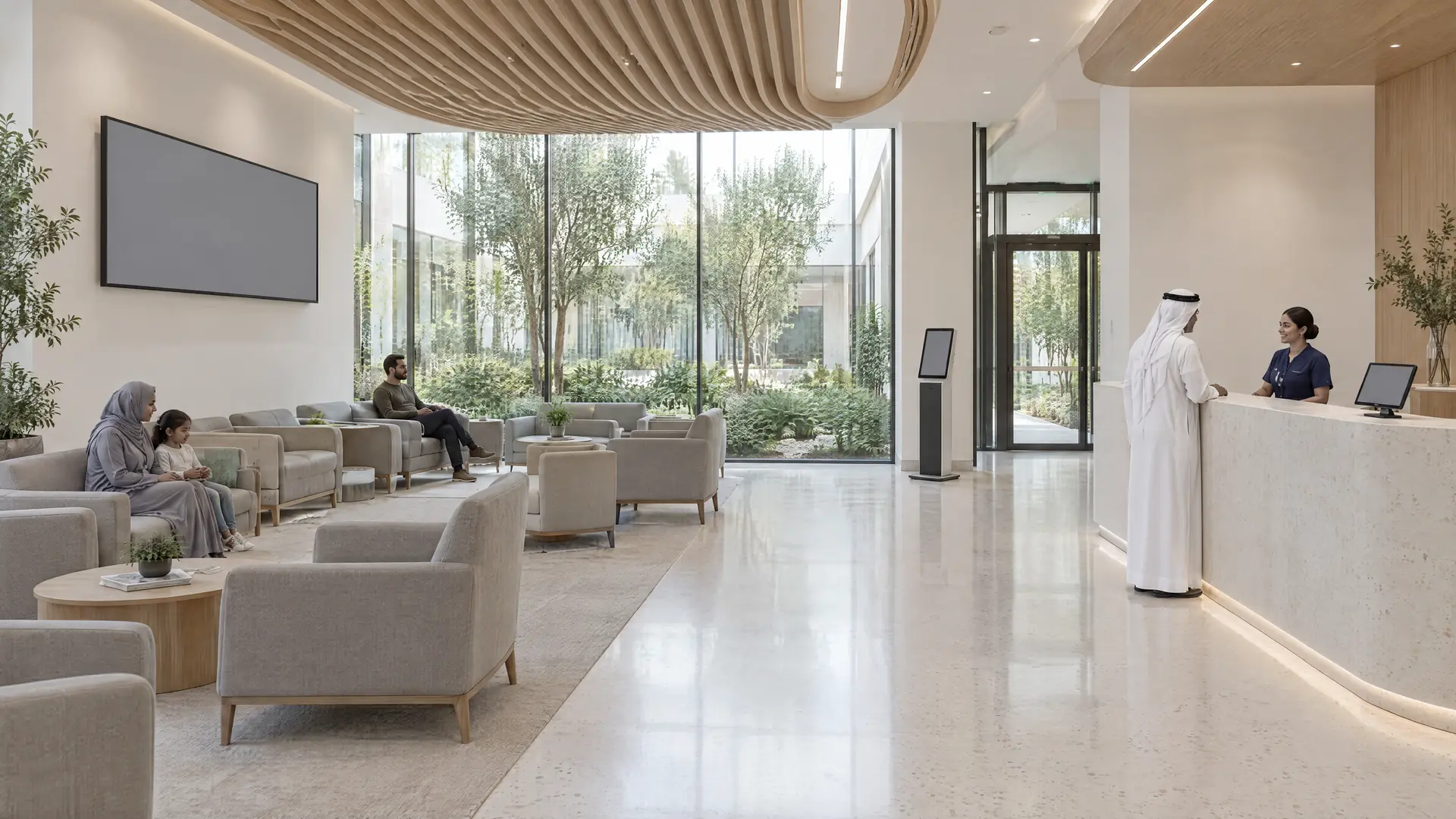
Calm clinic waiting hall facing a planted courtyard; a receptionist greets a visitor while others wait
  1. Arrive
  2. Wait
  3. Be served
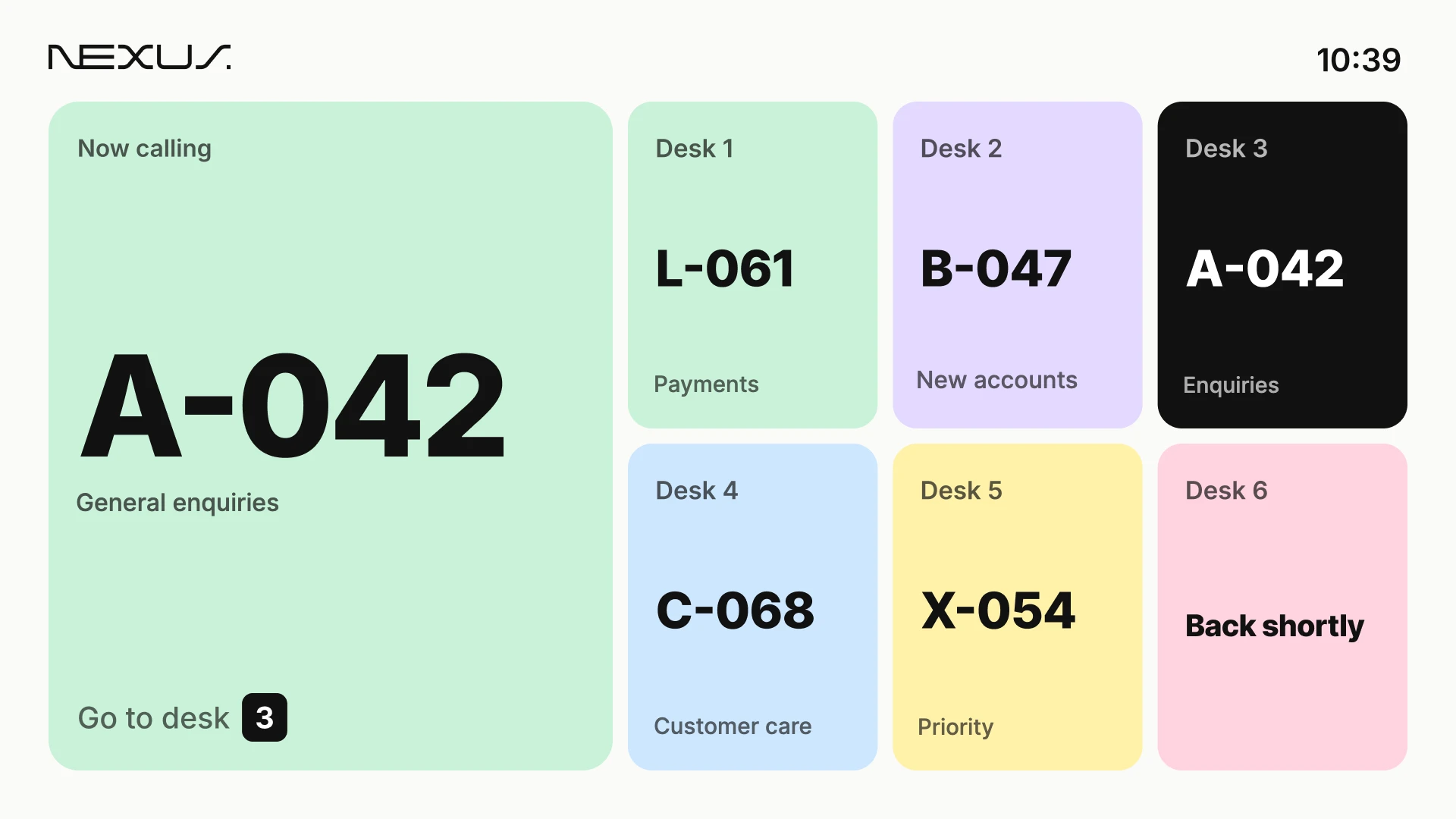
Waiting-area display: Nexus Queue clinic hall board. Ticket numbers are sample data.

How it works

Arrive. Wait. Be served.

Nexus Queue organises each step of a visit, so customers know where they stand and staff know who is next.

  1. Step 01 · Choose a service

    Arrive

    Customers take a ticket for the service they need.

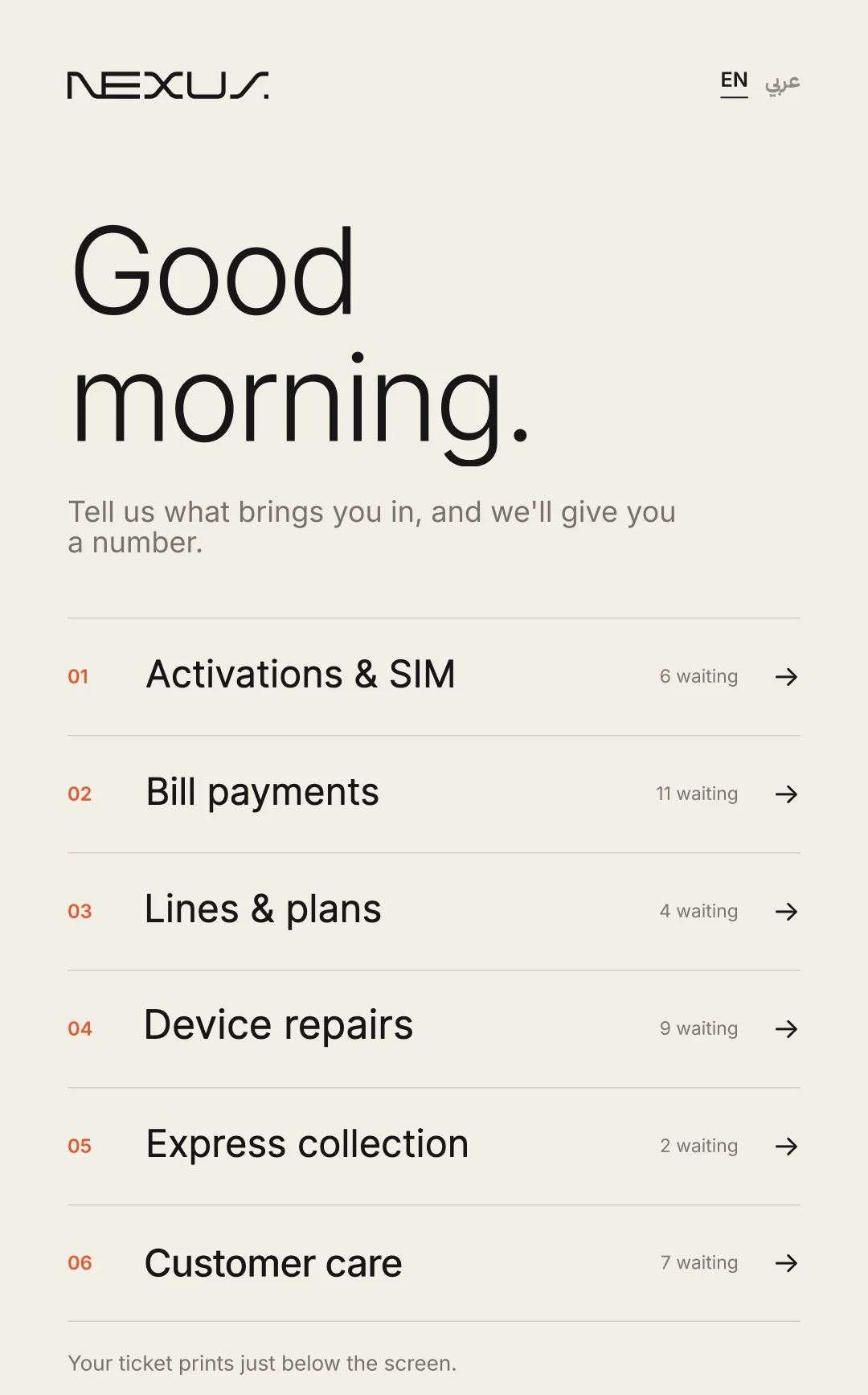
    • Customers choose the service they need at a kiosk and receive a ticket, so each counter serves the right queue.
    • Customers choose a sales, service or repair visit at the kiosk and take a ticket for that queue.

    Interactive preview of Nexus design screens, not the working product

    Ticket kiosk: choose a service (Nexus Queue design)
  2. Step 02 · Wait and get called

    Wait

    A clear place in line and clear calls to the right counter.

    • Nexus Queue hall displays show which ticket is being served and at which counter, so customers can see when and where they are called.

    Interactive preview of Nexus design screens, not the working product

    Waiting-area board: now calling (telecom branch) (Nexus Queue design)
  3. Step 03 · Served at the counter

    Be served

    Staff call the next customer and manage the flow at each counter.

    • Issue tickets for returns, collections or repairs, so customers wait in order and staff call the next person to the right desk.

    Interactive preview of Nexus design screens, not the working product

    Counter display: now serving (Nexus Queue design)

Kiosk, hall and counter screens: Nexus Queue. Ticket numbers are synthetic sample data.

For your team

Behind the counter

Staff call the next customer and manage the flow at each counter.

Advisor counter app: serving a ticket (Nexus Queue design)
Advisor counter app: serving a ticket. Names and tickets are sample data.

Calling policies

Who is next, and why

An administrator sets the order in which tickets are called: first come, first served, or a ranked set of rules with a tie-break. A policy can be the branch default or assigned to one desk.

Every call shows the rule that selected the ticket, so staff can explain the order and branches using the same policy call in the same way.

Example policy · ranked rules
  1. 1Priority customersCustomer types with a higher weight
  2. 2Longest waitingOnce a ticket passes a set number of minutes
  3. 3Everyone else in orderFirst come, first served
  4. =Tie-breakThe earlier ticket is called first
Next call: A-042 to desk 3Rule applied: Longest waiting

Diagram of how calling rules order tickets, with a synthetic ticket number. Not a product screen.

Calling rules: ordered rules with a time threshold (detail) (Nexus Queue design)
In the policy editor: ordered rules with a time threshold.

Inside the operation

From the ticket to the report

Ticket issuance

Every visit starts in the right queue

Customers choose their service at a kiosk, in a language they choose from those offered, and say if they need priority. The ticket shows their number, how many people are ahead and an estimated wait, printed or on screen, with a QR code to follow their turn.

The ticket shows the service, the place in line and an estimated wait, so customers know where they stand.

Built on

  • Self-service kiosk ticket journey
  • Priority selection at the kiosk
  • Kiosk language selection
  • Printed paper ticket
  • Wait estimate and people ahead
  • QR live-ticket tracking
Kiosk: ticket issued, with wait estimate (Nexus Queue design)
Kiosk: ticket issued, with wait estimate. Sample data.

Counter and caller operations

Serve, hold, transfer: one counter workflow

From the counter application, staff call the next ticket, call again or mark a no-show, put a visit on hold and resume it, or transfer it to another service. Single keys cover the common actions.

Exceptions are handled inside the system instead of around it, so every visit stays traceable from ticket to outcome.

Built on

  • Call next
  • Called state: start serving, call again, no-show
  • Serving and complete
  • Hold, resume and reopen
  • Transfer ticket
  • Ticket history in the caller
  • Keyboard shortcuts
  • Key N: Call next
  • Key S: Start serving
  • Key C: Complete
  • Key H: Hold
  • Key R: Call again
  • Key T: Transfer

Reporting and operational insights

The floor as it stands

The live console shows every queue with its waiting count and longest wait, and every counter with who is signed in and what they are serving. It flags tickets past their target, and queues that no open counter can call.

Supervisors see late tickets and uncovered queues while there is still time to act.

Built on

  • Live floor console
  • Early warnings for late tickets and uncovered queues
Live floor: queues and counters (detail) (Nexus Queue design)
Live floor: queues and counters (detail). Sample data.

Reporting and operational insights

Reports straight from the tickets

Choose a period and filter by service, counter or source. See tickets issued and served, average wait and service time, the tickets not served and why, how long people waited, and the history of each ticket. Reports export as CSV, Excel or PDF.

Staffing and service targets can be set from measured demand rather than impressions.

Built on

  • Queue reports with filters
  • Wait-time distribution
  • Ticket-level history and outcomes
  • Report export (CSV, Excel, PDF)
Reports: headline figures and tickets per day (detail) (Nexus Queue design)
Reports: headline figures and tickets per day (detail). Sample data.

In your locations

Wherever people wait to be served

Branches, stores and service desks: the same flow, set up for the services each location offers.

An advisor helps a customer with his phone at a service counter in a telecom branch at dusk

01

Sales, service and repairs

Nexus Queue hall displays and counter displays show who is next and where to go.

The large display shows illustrative branch content.

Customers wait on sofas in a telecom branch lounge at dusk, one watching a display above the lounge, with service counters and a large display wall behind

02

Returns, collections and repairs

Issue tickets for returns, collections or repairs, so customers wait in order and staff call the next person to the right desk.

Lounge display: Nexus Queue waiting-area board with fictional services.

Capabilities in detail

Run every service floor

Seven groups of capabilities, from service setup to reporting, and a directory of the capabilities described here.

7 groups · 81 capabilities · select a group, or search the complete directory below.

Service configuration · 11 capabilities

Define each service once: its names in two languages, its ticket numbering, its time targets and where it is offered.

Service catalogue per branchDefines the services customers can queue for, with a name and description in two languages, a shared service code, the branches that offer it and optional parent services that group sub-services on the kiosk.
How it is used
Administrator adds or edits a service in a stepped side panel (Identity, Numbering, Time and limits, Where it appears, Required data, Ticket and notifications) and switches 'Taking tickets' on or off.
The problem
Branches offer different services and customers pick the wrong queue when options are unclear.
The outcome
Each branch presents a consistent, named list of services, so customers join the correct queue.
For example
A bank or telecom network that offers account, card and repair services in some branches but not others.
Ticket numbering by service and sourceSets the ticket prefix and number range per service, with shared numbering or a separate run per source, so tickets from different sources never share a number; numbers restart each day.
How it is used
Administrator chooses 'Shared numbering' or 'Separate by source' and adds rows of source, prefix, from and to.
The problem
Duplicate or confusing ticket numbers across channels and days.
The outcome
Ticket numbers are predictable for staff and readable for customers on tickets and displays.
For example
A branch that issues walk-in and booked tickets for the same service.
Service-time targets and capacity limitsRecords an expected service time (used for waits shown on kiosks and boards), a service-level target after which a waiting ticket is flagged, a queue limit, a daily limit and a service priority value.
How it is used
Administrator enters minutes and limits in the 'Time and limits' step of the service panel.
The problem
Queues grow beyond what a branch can serve and late tickets go unnoticed.
The outcome
Branches stop issuing when a limit is reached and supervisors see which tickets have passed the internal target.
For example
A government service centre that caps daily tickets for a document service.
Service availability by kiosk or staff issueControls where a service is offered: on every kiosk, on chosen kiosks only, or not on kiosks so that staff issue the ticket.
How it is used
Administrator selects one of three options in the 'Where it appears' step.
The problem
Some services need staff screening before a customer joins the queue.
The outcome
Self-service and assisted services run side by side under one queue.
For example
A clinic that lets patients self-register for check-in but has reception issue tickets for specialist services.
Required customer data before a ticket is issuedLets a service ask questions before issuing a number (for example name, mobile number or account number), with answer types, length and format checks; with no questions the kiosk issues a number in one tap.
How it is used
Administrator manages a question library with answer types and checks, then ticks which questions a service asks; customers answer on the kiosk and review before printing.
The problem
Staff spend counter time collecting basic details and correcting errors.
The outcome
Details arrive with the ticket in a validated format, so the counter starts with what it needs.
For example
A bank that captures an account reference before an account-servicing ticket.
Online booking settings per branch and servicePer branch, online booking can be switched on while walk-ins continue as usual. Settings cover how far ahead and how late bookings can be made, the kiosk check-in window and the time zone. Each service is marked bookable online (with appointment length, people per slot and its own hours) or walk-in only; bookings are offered only within branch hours.
How it is used
Administrator sets switches and numeric limits per branch and per service.
The problem
Each branch needs to decide what can be booked and when.
The outcome
Branches control how far ahead and how late customers can book, which services can be booked, and when a booking counts as missed.
For example
A branch opens bookings for account services only and keeps general enquiries walk-in.
Complete capability directoryAll 81 capabilities

81 of 81 capabilities shown

  • Service catalogue per branchDefines the services customers can queue for, with a name and description in two languages, a shared service code, the branches that offer it and optional parent services that group sub-services on the kiosk.Service configuration
    How it is used
    Administrator adds or edits a service in a stepped side panel (Identity, Numbering, Time and limits, Where it appears, Required data, Ticket and notifications) and switches 'Taking tickets' on or off.
    The problem
    Branches offer different services and customers pick the wrong queue when options are unclear.
    The outcome
    Each branch presents a consistent, named list of services, so customers join the correct queue.
    For example
    A bank or telecom network that offers account, card and repair services in some branches but not others.
  • Ticket numbering by service and sourceSets the ticket prefix and number range per service, with shared numbering or a separate run per source, so tickets from different sources never share a number; numbers restart each day.Service configuration
    How it is used
    Administrator chooses 'Shared numbering' or 'Separate by source' and adds rows of source, prefix, from and to.
    The problem
    Duplicate or confusing ticket numbers across channels and days.
    The outcome
    Ticket numbers are predictable for staff and readable for customers on tickets and displays.
    For example
    A branch that issues walk-in and booked tickets for the same service.
  • Service-time targets and capacity limitsRecords an expected service time (used for waits shown on kiosks and boards), a service-level target after which a waiting ticket is flagged, a queue limit, a daily limit and a service priority value.Service configuration
    How it is used
    Administrator enters minutes and limits in the 'Time and limits' step of the service panel.
    The problem
    Queues grow beyond what a branch can serve and late tickets go unnoticed.
    The outcome
    Branches stop issuing when a limit is reached and supervisors see which tickets have passed the internal target.
    For example
    A government service centre that caps daily tickets for a document service.
  • Service availability by kiosk or staff issueControls where a service is offered: on every kiosk, on chosen kiosks only, or not on kiosks so that staff issue the ticket.Service configuration
    How it is used
    Administrator selects one of three options in the 'Where it appears' step.
    The problem
    Some services need staff screening before a customer joins the queue.
    The outcome
    Self-service and assisted services run side by side under one queue.
    For example
    A clinic that lets patients self-register for check-in but has reception issue tickets for specialist services.
  • Required customer data before a ticket is issuedLets a service ask questions before issuing a number (for example name, mobile number or account number), with answer types, length and format checks; with no questions the kiosk issues a number in one tap.Service configuration
    How it is used
    Administrator manages a question library with answer types and checks, then ticks which questions a service asks; customers answer on the kiosk and review before printing.
    The problem
    Staff spend counter time collecting basic details and correcting errors.
    The outcome
    Details arrive with the ticket in a validated format, so the counter starts with what it needs.
    For example
    A bank that captures an account reference before an account-servicing ticket.
  • Online booking settings per branch and servicePer branch, online booking can be switched on while walk-ins continue as usual. Settings cover how far ahead and how late bookings can be made, the kiosk check-in window and the time zone. Each service is marked bookable online (with appointment length, people per slot and its own hours) or walk-in only; bookings are offered only within branch hours.Service configuration
    How it is used
    Administrator sets switches and numeric limits per branch and per service.
    The problem
    Each branch needs to decide what can be booked and when.
    The outcome
    Branches control how far ahead and how late customers can book, which services can be booked, and when a booking counts as missed.
    For example
    A branch opens bookings for account services only and keeps general enquiries walk-in.
  • Customer cancellation and reschedulingCustomers can cancel from the link in their confirmation and reschedule to another free slot, within limits the branch sets. A cancelled slot returns to the diary.Service configuration
    How it is used
    Customer opens the confirmation link and cancels or reschedules; administrator sets the cancel and reschedule limits.
    The problem
    Unused booked slots are lost when customers cannot release them.
    The outcome
    Customers release or move slots themselves.
    For example
    A customer who cannot attend cancels from the confirmation link and the slot returns to the diary.
  • Pause a service from taking ticketsAdd/edit service panel has a "Taking tickets" switch in its header; services list shows status Active per service.Service configuration
    How it is used
    Administrator switches a service off or on.
    The problem
    A service that cannot be offered today still issues tickets.
    The outcome
    A service can stop issuing tickets without being deleted.
    For example
    A branch pauses a service for the day without deleting it.
  • Add one service to many branches at onceCreates the same queue service in several branches in a single step, with the same names, numbering, limits and priority.Service configuration
    How it is used
    An administrator adds a service, ticks the branches that should offer it and saves.
    The problem
    Repeating the same service set-up branch by branch wastes time and introduces differences.
    The outcome
    A consistent service catalogue across the network, rolled out in one action.
    For example
    A bank adds a new account-opening service to all of its branches at once.
  • Booking capacity, daily caps and special dates per servicePer service, sets how slots are sized (by expected service time or a fixed interval), how many people each slot takes, a daily booking cap, and special dates that close the day or block a time range; branch holidays close booking automatically.Service configuration
    How it is used
    An administrator opens a service's booking settings and sets the slot mode, capacity, daily cap and any special dates.
    The problem
    Appointments that ignore real capacity or one-off closures create overbooking and wasted visits.
    The outcome
    Bookable time matches what each service can actually handle on each day.
    For example
    A licensing office blocks bookings during a staff training afternoon without closing the branch.
  • Apply booking settings to many branches at onceSwitches on online booking and applies the same notice, horizon, cancellation, rescheduling and check-in rules to several branches in one step, or resets them to defaults.Service configuration
    How it is used
    An administrator selects branches and saves one set of booking rules for all of them.
    The problem
    Setting booking rules branch by branch is slow and leads to inconsistent customer policies.
    The outcome
    One booking policy rolled out across the network.
    For example
    A bank opens appointments in all city branches with the same 24-hour cancellation rule.
  • Self-service kiosk ticket journeyGuides a customer from a welcome screen through service choice, priority, details and review to an issued ticket, showing how many people are waiting for each service.Ticket issuance
    How it is used
    Customer taps a service on a touch kiosk, answers any configured steps and receives a printed ticket.
    The problem
    Crowded entrances and paper number systems that give customers no view of the queue.
    The outcome
    Customers take the right ticket in a few steps without staff help.
    For example
    Telecom store (sales, service, repairs), bank branch, clinic reception.
    Product screen
    Ticket kiosk: choose a service
  • Priority selection at the kioskOffers a priority step in which customers identify a customer type (for example senior or special needs) that the calling rules can weight.Ticket issuance
    How it is used
    Customer selects a priority option during the kiosk journey; administrator enables the step in the kiosk editor.
    The problem
    Customers who need priority service have to ask staff or wait in the general line.
    The outcome
    Priority customers are identified at intake and called according to published rules.
    For example
    Government or healthcare front desk serving seniors and people with special needs.
  • Kiosk language selectionLets the customer switch the kiosk language, with the ticket and the voice call following the chosen language.Ticket issuance
    How it is used
    Customer opens the language menu on the welcome or service screen.
    The problem
    Multilingual populations cannot use single-language kiosks without help.
    The outcome
    Customers complete the journey in the language they choose.
    For example
    Branches in multilingual cities and airports.
  • Reception-issued ticketsSupports a reception desk as a ticket source, where staff issue tickets for customers, and services that only staff can issue.Ticket issuance
    How it is used
    Staff at a reception point issue a ticket on the customer's behalf.
    The problem
    Some visitors cannot or should not use a kiosk.
    The outcome
    Assisted visitors join the same queue and reports as kiosk users.
    For example
    Hospital reception or VIP banking lounge.
  • Printed paper ticketPrints a ticket at the kiosk with the number, service, people ahead, wait estimate, a QR code and instructions.Ticket issuance
    How it is used
    Customer takes the printed ticket from the kiosk printer.
    The problem
    Customers forget their number or the service they chose.
    The outcome
    The customer carries their number, service and next steps.
    For example
    Any walk-in branch with kiosk printers.
  • Ticket and receipt designerBlock editor for printed tickets: paper width and font, logo, branch details, date and time, ticket number, wait estimate, QR code, instructions, ticket details, customer's answers and free text, per language.Ticket issuance
    How it is used
    Administrator adds, reorders and edits blocks beside a live sample ticket, then saves a branch default.
    The problem
    Generic tickets carry no branding or guidance.
    The outcome
    Tickets carry the organisation's logo and the instructions each branch needs.
    For example
    A bank printing branch details and document instructions on every ticket.
  • Wait estimate and people aheadShows the number of people ahead and an estimated wait on the ticket; expected service time drives waits shown on kiosks and boards.Ticket issuance
    How it is used
    Customer reads the estimate on the ticket; administrator toggles the block.
    The problem
    Uncertain waits cause walk-outs and counter complaints.
    The outcome
    Customers can decide whether to wait or return.
    For example
    Utility customer service hall.
  • QR live-ticket trackingPrints a QR code on the ticket labelled ‘Scan to follow your turn’, which opens the customer’s place in the queue on their phone.Ticket issuance
    How it is used
    Customer scans the ticket QR code with their phone.
    The problem
    Customers cannot leave the waiting area without risking a missed call.
    The outcome
    Customers follow their position from their phone.
    For example
    Clinic patients waiting in a café nearby.
  • Online booking page for customersA web page where a customer picks a branch, a day and a free time slot (taken slots and closed days are marked), enters their name, mobile number and an optional note, reviews the choices and confirms. It shows how long the service takes and explains that the booking reference is scanned at the kiosk on the day.Ticket issuance
    How it is used
    Customer follows a multi-step web flow and presses Confirm appointment.
    The problem
    Customers who must queue on arrival cannot plan their visit.
    The outcome
    Customers reserve a time slot at a branch before they travel.
    For example
    A bank customer books a 10-minute slot at the nearest branch from their phone.
  • Booking confirmation with reference and QR codeAfter booking, the customer sees a confirmation with a booking reference, a QR code to scan at the kiosk, the service, branch, date and time, the check-in window, and options to add it to a calendar, cancel or book another visit.Ticket issuance
    How it is used
    Customer keeps the reference or QR and presents it at the kiosk on arrival.
    The problem
    Customers need proof of their booking to use on arrival.
    The outcome
    One reference turns the booking into a ticket on the day.
    For example
    A customer keeps the QR code from the confirmation and adds the visit to their calendar.
  • Kiosk check-in for booked visitsA kiosk option "I have a booking" where the customer types the booking reference or scans the QR code from the confirmation to check in. The step appears only where online booking is on for the branch.Ticket issuance
    How it is used
    Customer types the reference or scans the confirmation QR at the kiosk.
    The problem
    Booked customers should not have to re-enter their details on arrival.
    The outcome
    Booked customers get their ticket at the kiosk from their reference.
    For example
    A customer scans the confirmation QR code at the kiosk and receives a ticket.
  • QR code on screen instead of a printed ticketKiosk setting "How customers get their ticket": Printed ticket or QR code on screen ("No printer: customers scan a QR instead"). Helper text: services set to print still print on kiosks with a printer; on a QR kiosk the QR replaces the paper. Kiosk final screen shows the number, people ahead, estimated wait and a "Follow it on your phone" QR with a Done button; the editor notes a kiosk without a printer keeps the code up for at least a minute.Ticket issuance
    How it is used
    Administrator picks the ticket mode per kiosk; customer scans the on-screen QR.
    The problem
    A printer at every kiosk adds cost and paper.
    The outcome
    Kiosks without a printer can still issue a followable ticket.
    For example
    A branch without a ticket printer issues tickets as a QR code on the kiosk screen.
  • Receipt designs chosen per service and kiosk, with a branch defaultDevices > Receipts lists receipt designs with "Applies to" (a service, or "Everything not covered by another"), layout (80 mm Standard), status and Design button. Add receipt design: name, printed design, For service, On kiosk, The branch default switch and In service switch; helper text "The most specific design wins: a service's own beats the branch default."Ticket issuance
    How it is used
    Administrator creates receipt designs and scopes them to a service and/or kiosk.
    The problem
    One receipt for every service misses service-specific details.
    The outcome
    Different services can print different tickets (e.g. a documents checklist for loans).
    For example
    A branch prints a different receipt for account services than for general enquiries.
  • Booking list for staff and automatic no-show markingStaff can look up bookings by reference, date, service or status and mark a no-show; bookings not checked in by the end of their check-in window are marked as no-shows automatically.Ticket issuance
    How it is used
    Staff search the booking list and open a booking; the system marks missed bookings itself.
    The problem
    Without a booking view staff cannot help a customer who lost their reference, and missed appointments go uncounted.
    The outcome
    Front-desk support for booked customers and no-show data for planning.
    For example
    Reception finds a customer's appointment by date and service and checks them in.
  • Voice announcement of called ticketsPlays a chime and reads the ticket number aloud when a desk calls it, in the ticket's own language.Waiting-area experience
    How it is used
    Administrator enables 'Call it out loud' and the spoken language per service.
    The problem
    Customers miss visual-only calls, including visually impaired visitors.
    The outcome
    Calls are both seen and heard in the waiting area.
    For example
    Large halls with several boards.
  • Hall board: now calling and recently calledShows the ticket now being called, its service and the desk to go to, with a list of recent calls.Waiting-area experience
    How it is used
    Customers watch the board in the waiting area; administrators assign a design to each board.
    The problem
    Customers crowd counters or miss their turn when they cannot see who is called.
    The outcome
    Customers see when and where they are called.
    For example
    Bank teller hall, telecom store, clinic waiting room.
    Product screen
    Waiting-area board: now calling (telecom branch)
  • Two languages on one screenDisplays labels in two languages side by side on hall boards and desk screens.Waiting-area experience
    How it is used
    Administrator selects a bilingual design.
    The problem
    Single-language screens exclude part of the audience.
    The outcome
    Arabic and English speakers read the same board.
    For example
    Gulf and Levant service halls.
  • Hall board with every desk, queue lengths and estimated waitsA hall-board design shows a card per desk with the ticket being served and its service, a "Back shortly" state for an away desk, a Queues list with people waiting and an approximate wait per service, a Recently called list, the branch name and a clock, all in English and Arabic.Waiting-area experience
    How it is used
    Customers read the board; no interaction.
    The problem
    Customers cannot see which desks are serving and how long queues are.
    The outcome
    Waiting customers see all desks, their queue and expected wait at a glance.
    For example
    A waiting hall shows every desk, the ticket at each and the people waiting per queue.
  • Hall board per zone: chosen desks and number of recent callsEach hall board can show every desk or only a chosen set, and lists a set number of recent calls per desk.Waiting-area experience
    How it is used
    An administrator selects the desks for a hall board and the number of recent calls to show.
    The problem
    One large waiting area with several zones confuses customers when every desk appears on every screen.
    The outcome
    Each waiting zone shows only the desks that serve it.
    For example
    A clinic shows ground-floor desks on the entrance board and first-floor desks on the upstairs board.
  • Desk sign-in and session startAfter sign-in, staff choose the desk they are sitting at, see their default desk and whether a colleague is already signed in there, and start a session; the screen offers Arabic.Counter and caller operations
    How it is used
    Staff member selects a desk card and presses 'Start session'.
    The problem
    Calls go to the wrong counter number when staff move desks.
    The outcome
    Customers are called to the desk where the staff member actually sits.
    For example
    Shared desks across shifts.
  • Call nextCalls the next ticket according to the desk's calling policy and shows how many people are waiting for the desk's services.Counter and caller operations
    How it is used
    Staff press 'Call next' or the N key.
    The problem
    Staff choose informally who to serve next.
    The outcome
    Each call follows the configured order.
    For example
    Any counter.
  • Called state: start serving, call again, no-showWhile a ticket is being called, shows the time since the call and offers start serving, call again (recall) or mark as a no-show.Counter and caller operations
    How it is used
    Staff press Start serving (S), Call again (R) or No-show.
    The problem
    Absent customers hold up the counter and repeat calls are improvised.
    The outcome
    Staff recall or close absent tickets in one action and the outcome is recorded.
    For example
    Busy halls where customers step away.
  • Serving and completeShows the ticket being served with service, source, customer type, wait time, reference, issue time and a service timer, and completes it in one action.Counter and caller operations
    How it is used
    Staff press Complete (C).
    The problem
    Service time and outcomes are not captured.
    The outcome
    Each visit ends with a recorded completion.
    For example
    Any counter.
    Product screen
    Advisor counter app: serving a ticket
  • Hold, resume and reopenPuts a ticket on hold, lists held tickets with resume, and offers reopening the last ticket.Counter and caller operations
    How it is used
    Staff press Hold (H), then Resume from the On hold tab, or 'Reopen' after completion.
    The problem
    Customers who must fetch a document lose their place.
    The outcome
    Paused visits resume without a new ticket.
    For example
    Customer leaves the counter to collect missing paperwork.
  • Transfer ticketTransfers a serving or held ticket from the ticket menu, with transfer reasons such as wrong service or needs a specialist.Counter and caller operations
    How it is used
    Staff press Transfer (T) or choose it from the ticket menu.
    The problem
    Customers in the wrong queue start again at the kiosk.
    The outcome
    The customer moves to the right service without a new ticket.
    For example
    Customer queued for cards but needs a loan officer.
  • Call out of turnLets staff pick any waiting ticket from their services, searchable by number or name; the history records that it was called out of turn.Counter and caller operations
    How it is used
    Staff open 'Call out of turn', search and press Call on a ticket.
    The problem
    Exceptions bypass the system and leave no record.
    The outcome
    Exceptions are possible and traceable.
    For example
    Calling a customer whom a supervisor has asked to be seen next.
  • Cancel ticket with reasonCancels a ticket from the ticket menu using a configured reason (for example customer left, duplicate, missing documents).Counter and caller operations
    How it is used
    Staff choose Cancel ticket and a reason.
    The problem
    Unexplained cancellations hide service problems.
    The outcome
    Cancellation reasons feed reporting.
    For example
    Customer arrives without required documents.
  • Ticket history in the callerShows a ticket's history from the caller, and lists done tickets for the session.Counter and caller operations
    How it is used
    Staff open Ticket history from the called ticket or the ticket menu.
    The problem
    Staff cannot see what happened earlier in a visit.
    The outcome
    Staff see prior steps such as transfers before serving.
    For example
    Transferred customer arriving at a second desk.
  • Queue overview and status in the callerSide panel lists each service the desk calls with people waiting, longest wait and tickets past target, plus On hold and Done tabs; the header shows served counts, average service, waiting and staff status (available, calling, serving).Counter and caller operations
    How it is used
    Staff glance at the panel and change status from the header.
    The problem
    Staff cannot see pressure on their queues.
    The outcome
    Staff see waiting load and late tickets for their own services.
    For example
    Multi-service desks.
    Product screen
    Advisor counter app: serving a ticket
  • Keyboard shortcutsSingle-key shortcuts for call next, start serving, complete, hold, call again and transfer, paused while typing in a field.Counter and caller operations
    How it is used
    Staff press N, S, C, H, R, T; '?' shows the list.
    The problem
    Mouse-driven counter apps slow repetitive work.
    The outcome
    Staff run the call cycle from the keyboard.
    For example
    High-volume teller desks.
  • Staff break and unavailability reasonsConfigured reason lists for breaks (for example prayer, lunch) and being unavailable (system issue, meeting, training).Counter and caller operations
    How it is used
    Staff choose a reason when changing status; administrators manage the list.
    The problem
    Supervisors cannot tell why a desk is not calling.
    The outcome
    Desk downtime has a recorded reason.
    For example
    Branches with prayer and lunch breaks.
  • Desk screen: now serving and up nextDisplays the desk number, the ticket now being served and its service, and in some designs the next few numbers for the desk.Counter and caller operations
    How it is used
    Customers see the screen above or beside the counter.
    The problem
    Customers are unsure they are at the right counter.
    The outcome
    Customers confirm the right desk on arrival.
    For example
    Teller hall counters, clinic consultation rooms.
    Product screen
    Counter display: now serving
  • Desk screen closed and waiting statesDesk screen variants: "Closed - This desk is closed. Please take a seat - your number will be called at another desk."; an idle "Please wait" screen in Arabic and English with the desk number; a bilingual now-serving screen. Hall/desk screens show small on-screen controls (mute, full screen, screen) in a corner.Counter and caller operations
    How it is used
    Customers read the screen; staff/desk state drives which variant shows.
    The problem
    A blank desk screen leaves customers unsure whether the desk is open.
    The outcome
    Customers are told when a counter is closed instead of seeing a blank screen.
    For example
    A closed desk tells customers they will be called at another desk.
  • Staff desk-app sign-in with employee code and PINDesk app sign-in screen: "Sign in to your desk - Use your employee code and the PIN your branch manager gave you", fields Employee code and PIN, Arabic switch. Console Users page states staff who call tickets sign in on the caller app instead of console accounts.Counter and caller operations
    How it is used
    Staff enter an employee code and PIN on the desk app.
    The problem
    Shared logins make it unclear who served whom.
    The outcome
    Counter staff use a separate, simple sign-in from administrators.
    For example
    Each employee signs in to the desk app with their own code and PIN.
  • No-show reasons recorded in ticket historyThe shared Reasons list marks reasons as offered for No-shows (e.g. Did not respond, Customer left) as well as cancellations and transfers; a ticket history entry reads "Marked as no-show by [staff] - Reason: Did not respond", after Called and Called again entries.Counter and caller operations
    How it is used
    Staff choose a reason when marking a no-show; the history shows it.
    The problem
    Without reasons, no-shows cannot be analysed.
    The outcome
    Reports can show why tickets ended early (reports list "Why tickets ended early").
    For example
    Staff record why a called customer did not show, and the reason appears in the ticket history.
  • Start serving automatically on callA desk setting that moves a called ticket straight into service, skipping the separate start-serving step.Counter and caller operations
    How it is used
    An administrator switches the option on for a desk; staff at that desk then only call and complete.
    The problem
    An extra click per customer slows desks where the customer is already standing at the counter.
    The outcome
    Fewer steps per customer and service timers that start at the call.
    For example
    A cashier desk with a short line calls and serves each customer in one action.
  • Call back a customer marked as absentKeeps customers marked absent in a list at the desk, so staff can announce them again or reopen and call them in one action when they return.Counter and caller operations
    How it is used
    Staff open the absent list, find the returning customer's number and choose call absent or reopen and call.
    The problem
    Customers who step away and miss their call otherwise have to take a new ticket and queue again.
    The outcome
    Late returners are served without losing their visit, and the history records the recall.
    For example
    A customer who left to fetch a document is called back at the same desk on return.
  • Calling policies (first come or ordered rules)Each policy either serves first come, first served or applies ordered rules (for example customer-type priority, longest waiting after a set number of minutes, everyone else in order) with a tie-break; a policy can be the branch default or assigned to a desk.Queue rules and customer flow
    How it is used
    Administrator creates a policy, orders rules with up/down controls and sets thresholds.
    The problem
    Hidden or inconsistent calling order causes complaints about fairness.
    The outcome
    The calling order is explicit and the same rules apply at every desk that uses the policy.
    For example
    Branches that must prioritise seniors without letting other customers wait indefinitely.
  • Rule shown on every callShows staff which rule and policy decided the current call (for example 'Decided by customer type priority').Queue rules and customer flow
    How it is used
    Staff read the note under the called ticket.
    The problem
    Staff cannot explain to a customer why someone else went first.
    The outcome
    Staff can explain each call.
    For example
    Front desks handling queue disputes.
    Product screen
    Advisor counter app: serving a ticket
  • Customer types and priority weightsShared list of customer types (for example regular, VIP, senior citizen, special needs) each with a priority weight, optionally desk-only, applied across branches.Queue rules and customer flow
    How it is used
    Administrator adds or edits customer types and weights.
    The problem
    Priority handling differs by branch and person.
    The outcome
    Priority rules are consistent across the network.
    For example
    Multi-branch bank with VIP and accessibility priorities.
  • Desk services, rotation and staffingConfigures each desk's number, name and area, the services it calls in rotation with batch sizes and a primary service, the employees who can sign in there, its calling policy, an always-open option and whether staff may change batch sizes.Queue rules and customer flow
    How it is used
    Administrator edits the desk panel; a preview shows the sign above the desk.
    The problem
    Desks serve the wrong mix of services at peak times.
    The outcome
    Each desk serves a defined mix and rotation.
    For example
    Teller desks that alternate deposits and cards.
  • Further calling rules: past-target, transferred, returned and service priorityAdds ordered calling rules that put first tickets past their service-time target, tickets arriving by transfer, tickets returned from hold, or the most important service; one policy can cover several branches.Queue rules and customer flow
    How it is used
    An administrator adds the rules to a policy, orders them and chooses the branches it applies to.
    The problem
    Customers who were transferred or are already late can be overtaken by new arrivals.
    The outcome
    Transferred and overdue customers can be called ahead of new arrivals, and one policy keeps the order consistent across branches.
    For example
    A government office serves anyone past their target first, then customers transferred from another service.
  • Kiosk flow editorLets administrators edit each kiosk step (welcome, services, priority, required data, review and edit, ticket and done) and choose a services layout as grid, table, dots or icons.Administration
    How it is used
    Administrator opens the kiosk editor, selects a step and adjusts layout and content.
    The problem
    Changing kiosk screens needs a vendor or developer.
    The outcome
    Operations teams adapt the kiosk journey to each service mix.
    For example
    A retail network adding a returns service to its kiosks.
  • Signature design themesProvides matched kiosk, hall board and desk screen designs in named styles, such as Aurora, Bento, Civic and Paper.Administration
    How it is used
    Administrator browses designs by screen type and aspect ratio and selects a style.
    The problem
    Queue screens look unrelated to the brand and to each other.
    The outcome
    Kiosk, hall and desk screens share one visual style per location.
    For example
    A franchise network applying one look across branches.
    Product screen
    Ticket kiosk: choose a service
  • Design library and screen assignmentLists hall board, desk screen and kiosk designs and templates, and assigns a chosen design to all or selected screens.Administration
    How it is used
    Administrator picks a template, chooses screens in a dialog and applies it.
    The problem
    Updating many screens one by one is slow and inconsistent.
    The outcome
    A design change reaches the selected screens together.
    For example
    Rebranding all hall boards in a region.
  • Screen designer with live queue elementsCanvas editor for desk screens and hall boards with drag-in live elements (current ticket, desk number, up next) plus text, photos, shapes and widgets.Administration
    How it is used
    Administrator drags live parts onto a 16:9 canvas, previews and saves a custom version.
    The problem
    Fixed screen layouts do not fit each site or brand.
    The outcome
    Teams build screen layouts that fill with live branch numbers.
    For example
    A clinic adding wayfinding text to its desk screens.
  • Branches, working hours and special daysManages branches with settings, weekly working hours, holidays and special days.Administration
    How it is used
    Administrator edits branch settings and adds special days.
    The problem
    Kiosks issue tickets outside service hours.
    The outcome
    Each branch follows its own calendar.
    For example
    Networks with regional holidays.
  • Device managementInventories kiosks, hall boards, desk screens and receipt printers per branch, with an in-service switch, kiosk type, code and screen shape.Administration
    How it is used
    Administrator lists devices and edits a device.
    The problem
    No overview of which devices are in service.
    The outcome
    Administrators see and control each branch's queue devices.
    For example
    Rolling out kiosks branch by branch.
  • Users and rolesManages users, from administrators who shape services, desks, rules and devices to read-only viewers.Administration
    How it is used
    Administrator adds a user and assigns a role.
    The problem
    Too many people can change queue rules.
    The outcome
    Configuration rights are limited to administrators.
    For example
    Head office administrators with branch managers as viewers.
  • Audit log of configuration changesRecords each configuration change with who made it, when, where, and the values before and after.Administration
    How it is used
    Administrator reviews the audit log.
    The problem
    Rule changes cannot be traced.
    The outcome
    Changes to services, desks and rules are traceable.
    For example
    Regulated sectors that review operational changes.
  • Multilingual service contentStores service names and descriptions in two languages and offers a Languages settings area.Administration
    How it is used
    Administrator enters text per language.
    The problem
    Translations are managed outside the system.
    The outcome
    Kiosks and screens show maintained translations.
    For example
    English/Arabic deployments.
  • Cloud and on-premises deploymentOffered as a cloud deployment or installed on premises, according to the customer’s requirements.Administration
    How it is used
    The deployment model is agreed with Nexus Cloud during the evaluation, before rollout.
    The problem
    Some organisations must keep systems and data on their own infrastructure; others prefer a managed cloud service.
    The outcome
    The same product can be adopted under either operating model.
    For example
    A regulated organisation that requires on-premises installation.
  • Kiosk idle timer and automatic return to startKiosk editor "Done button" section: "Ends the visit. With no touch, the kiosk goes back to the start by itself when the timer runs out", an Idle timer in seconds and a switch to show the countdown on the button. The kiosk preview shows a progress bar under Done.Administration
    How it is used
    Administrator sets the idle seconds and countdown visibility per kiosk design.
    The problem
    A kiosk left on the last screen confuses the next customer.
    The outcome
    The kiosk resets for the next customer without staff action.
    For example
    After a customer walks away, the kiosk returns to the start on its own.
  • Optional kiosk steps (show or hide each step)Each kiosk-editor step has a "Show this step" switch. For Welcome: when off, the kiosk opens straight on the first question in the default language. For Online booking: reached from an "I have a booking" button and only shown where online booking is on. Steps listed: Welcome, Priority, Services, Details, Review, Ticket, Booking.Administration
    How it is used
    Administrator toggles steps on or off in the kiosk editor.
    The problem
    Unneeded steps slow every visit at the kiosk.
    The outcome
    Branches can shorten the kiosk journey to the steps they need.
    For example
    A branch with one language hides the language step.
  • Kiosk text styling, clock and footer notePer step, title and description text are entered per language with a style control (size S-XL, weight Light-Heavy, colour). Options include a clock in a chosen corner (Top left, Top right, Bottom) and a footer note (e.g. "Your ticket prints just below the screen"). Editor shows Unsaved changes, Preview, Save, Save & close, a Reset per step, and a live preview at a chosen screen shape and language.Administration
    How it is used
    Administrator edits text and style fields and checks the live preview.
    The problem
    Kiosk text that ignores brand and language looks out of place.
    The outcome
    Kiosk wording and look can be adjusted without design tools.
    For example
    A bank sets its welcome text in two languages, in its own colours, with a clock.
  • Screen pairing for kiosks and displaysDevices page has a "Pair a screen" button and a Paired column (Paired / Not paired); each device menu offers Edit, Unpair (disabled with "Nothing is paired to this device") and Delete.Administration
    How it is used
    Administrator pairs a physical screen to a configured device, or unpairs it.
    The problem
    Devices that are not linked to the console cannot be managed.
    The outcome
    Configured kiosks and screens are bound to specific physical hardware.
    For example
    An administrator pairs a new hall screen and sees it listed as paired.
  • Console accounts with temporary password and forced changeAdd user panel: email, role (Admin or Viewer; Viewer "can watch the live floor and read the reports"), and first password generated automatically, shown once and changed on first sign-in. Users list shows Active / Inactive and "Must change password" states, added date, and summary counts (accounts, deactivated, administrators, viewers).Administration
    How it is used
    Administrator creates an account and passes on the one-time password.
    The problem
    Shared or permanent first passwords weaken account security.
    The outcome
    Accounts can be created and deactivated with a defined first-sign-in step.
    For example
    A new supervisor receives a temporary password and sets their own at first sign-in.
  • Audit log filters by change type, person, branch and periodAudit log described as "A permanent, newest-first record of every configuration change", with a count of changes, filters for type of change (Everything), person (Anyone) and branch (Every branch), period tabs 7 days / 30 days / 90 days / All time, and columns When, Who, What (Created/Edited/Deleted + object type), Where and Details (before/after values).Administration
    How it is used
    Administrator filters and reads the log.
    The problem
    Configuration changes are hard to trace without a record.
    The outcome
    Administrators can trace who changed a setting, where and when.
    For example
    An administrator filters the audit log by branch and week to see who changed a service.
  • Branch status and setup overviewBranches page shows totals (branches incl. closed, services and desks across branches, "Not set up yet" for open branches with no services), search, status filter, per-branch address, queue summary (Services N, Desks N or Not set up) and Active/Inactive status. Add branch takes a name in English and Arabic and an optional address. Text: "Each branch owns its own services, desks, policies and screens. Renaming one changes it everywhere it appears."Administration
    How it is used
    Administrator reviews and adds branches.
    The problem
    It is hard to see which branches are ready to take customers.
    The outcome
    Multi-branch operators see which branches are not yet configured.
    For example
    Head office spots an open branch that has no services set up yet.
  • Branch set-up templates applied in one stepApplies a ready-made set-up (services, customer types, reasons and a calling policy) to a new, empty branch in one step; if any part is rejected, everything created is removed again.Administration
    How it is used
    An administrator opens the template gallery, chooses a template and an empty branch, applies it and then adjusts names, kiosks and desks.
    The problem
    Configuring every new branch from scratch is slow and leads to inconsistent set-ups.
    The outcome
    A new branch starts from a consistent configuration in minutes, with a clean rollback if something fails.
    For example
    An organisation rolling out queueing to several clinics starts each new branch from the same clinic template.
  • Automatic end-of-day closeOnce a day the system archives the day's finished tickets, clears desks, resets rotation and ticket numbers, and tells screens the day is closed; an administrator can re-run a past date if needed.Administration
    How it is used
    Nothing is needed day to day; an administrator can re-run the close for a given date.
    The problem
    Manual closing routines are forgotten and leave stale numbers and desks into the next morning.
    The outcome
    Branches start the day with fresh numbering and cleared desks, with an archive kept for reporting.
    For example
    A branch opens each morning with tickets starting again at the first number.
  • Live floor consoleShows every queue, desk and call for a branch as a live view: waiting, longest wait, serving, desks open, served today, per-queue status, recent calls and each desk's state.Reporting and operational insights
    How it is used
    Supervisor opens Live and selects a branch.
    The problem
    Managers walk the floor to understand the queue.
    The outcome
    Supervisors see the whole floor from one screen.
    For example
    Branch manager redeploying staff at peak.
  • Early warnings for late tickets and uncovered queuesFlags tickets past their target and queues no open counter can call.Reporting and operational insights
    How it is used
    Supervisor sees warning chips on the live console.
    The problem
    Problems are noticed only after customers complain.
    The outcome
    Supervisors act on late or uncovered queues earlier.
    For example
    Opening an extra desk for a queue with no counter.
  • Demand by sourceShows whether tickets were walk-in or booked, and which customer type they were issued to.Reporting and operational insights
    How it is used
    Supervisor reads the 'Today's mix' panel; reports filter by source.
    The problem
    Managers cannot see which channel drives demand.
    The outcome
    Channel mix is visible per branch and period.
    For example
    Planning staffing for walk-in and booked visits.
  • Queue reports with filtersReports issued, served, average wait, average service and not served, with tickets per day, by service and by counter, filtered by period, service, counter and source.Reporting and operational insights
    How it is used
    Manager selects a period and filters on the Reports page.
    The problem
    Decisions rely on impressions rather than ticket data.
    The outcome
    Managers review queue performance from ticket records.
    For example
    Monthly branch reviews.
  • Wait-time distributionShows how long people waited in wait bands, not only the average.Reporting and operational insights
    How it is used
    Manager reads the distribution panel in Reports.
    The problem
    Averages hide long waits.
    The outcome
    Managers see the share of long waits.
    For example
    Service-standard reviews.
  • Ticket-level history and outcomesSearchable list of tickets with issue time, wait, service time, counter and outcome (completed, no-show, waiting), and reasons tickets ended early.Reporting and operational insights
    How it is used
    Manager searches by number or reference and filters by outcome.
    The problem
    Individual complaints cannot be investigated.
    The outcome
    Any ticket's path can be reviewed.
    For example
    Investigating a customer complaint.
  • Report export (CSV, Excel, PDF)Exports reports as CSV, Excel or PDF.Reporting and operational insights
    How it is used
    Manager opens Export and chooses a format.
    The problem
    Data has to be retyped for management packs.
    The outcome
    Queue data moves into existing reporting.
    For example
    Head-office monthly pack.
  • Queue load and desk cover per serviceThe live view shows per service a load percentage, how many signed-in staff can serve it, called, serving and on-hold counts, average wait and service time, plus a card with today's hours and booking status.Reporting and operational insights
    How it is used
    A manager opens the live board and scans each service's load and cover.
    The problem
    Managers see long queues only after they form, without knowing whether enough desks can serve them.
    The outcome
    Staff can be moved to the services that are under-covered before waits grow.
    For example
    A supervisor opens a second desk for a service whose load passes its cover.
  • Ticket action history report across branchesAn action-level report across branches listing every call, transfer, hold, cancellation and completion, with summary counts and filters for branch, service, desk, source, status and period.Reporting and operational insights
    How it is used
    A manager opens the history report, sets filters and pages through the actions.
    The problem
    Disputes and service reviews need the full journey of tickets across branches, not only outcomes.
    The outcome
    A filterable record of the actions on each ticket across the network.
    For example
    Head office reviews all transfers between services across branches last month.

Industries

Nexus Queue by industry

See how organisations in your sector use Nexus Queue, and which other Nexus products fit alongside it.

Resources

Nexus Queue documents

All Nexus Queue resources

Guides about Nexus Queue

All guides

Questions

Before you book a demo

Can we start with Nexus Queue only?

Yes. Each product works on its own. You can add Nexus Signage or Nexus Surveys later, in the same console and sign-in.

Can we start with a few locations?

Yes. A deployment can begin in selected locations and extend across the network. Sites, scope and sequencing are agreed during the consultation.

Which kiosks and displays are supported?

Supported hardware is confirmed for your locations during the consultation, before any rollout commitment.

Can Nexus Queue run on premises?

Yes. Nexus Queue is offered as a cloud deployment or installed on premises, according to your requirements. Your IT team reviews the hosting and security requirements with us during the evaluation.

Can Nexus Queue connect to our existing systems?

Integration requirements are reviewed during the consultation. We confirm what applies to your environment before any technical commitment.

How do customers get a ticket?

At a self-service kiosk, which guides them through choosing a service and any priority or details step to an issued ticket. At a reception desk, where staff issue tickets.

Can a kiosk work without a ticket printer?

Yes. A kiosk can show the ticket as a QR code on screen instead of printing it, so customers can still follow their ticket.

Can customers book an appointment online?

Yes, where a branch switches on online booking, while walk-ins continue as usual. Customers pick a branch, a day and a free time slot, and receive a booking reference and QR code. On arrival they check in at the kiosk with their reference and get their ticket.

Can customers cancel or reschedule a booking?

Yes. Customers can cancel from the link in their confirmation or reschedule to another free slot, within limits the branch sets.

Can we give priority to senior citizens, customers with special needs or VIPs?

Yes. Customer types such as senior citizen, special needs or VIP each carry a priority weight that the calling rules can apply. Where the kiosk offers a priority step, customers can identify their type there.

Are calls announced, and in which language?

Where call-out is switched on, a chime plays when a desk calls a ticket and the ticket number is read aloud in the ticket's language. Hall boards and desk screens can show labels in two languages side by side, such as Arabic and English.

Can we see who changed a setting?

Yes. The audit log records each configuration change with who made it, when, where, and the values before and after. It can be filtered by change type, person, branch and period.

See Nexus Queue in your locations

Tell us about your locations. We will show you how it fits and how a rollout would work.